Chromebooks are popular for education, everyday browsing, online research, and productivity. Their lightweight design and browser-focused experience make it easy to access websites without installing traditional desktop software. However, users sometimes encounter website loading errors, access restrictions, or compatibility problems.
This is why people search for BlockAway proxy for Chromebook. They want to understand how BlockAway works, whether it can be accessed through ChromeOS, and what to do when a website does not load.
In this guide, we explain how browser-based proxies work on Chromebooks, how to use a supported web interface, common troubleshooting methods, and important privacy and security considerations.
What Is BlockAway Proxy?
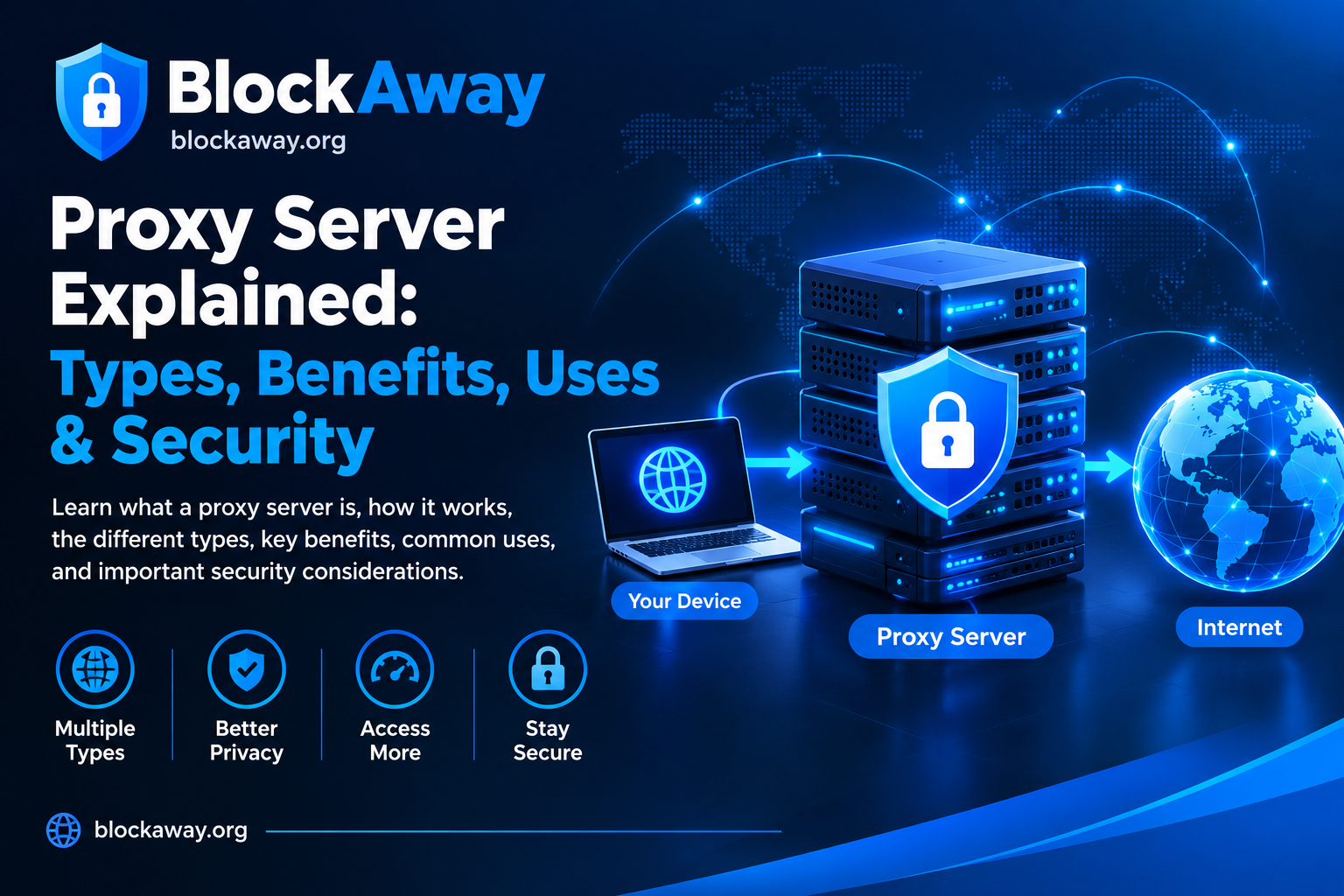
BlockAway is associated with browser-based web proxy access. A web proxy acts as an intermediary between your browser and a destination website.
Instead of requesting a supported page directly, your browser sends a request through the proxy service. The proxy then attempts to retrieve the content and display it in its interface.
People may use web proxies for basic browsing or to investigate website access problems. However, a proxy does not guarantee access to every website, and it is not the same as a VPN or a dedicated video streaming platform.
The features available depend on the current service, the destination website, and any applicable network restrictions.
Does BlockAway Work on Chromebook?
A Chromebook can access many browser-based services through Google Chrome. If BlockAway’s official web interface is available and compatible with your browser, you may be able to use it without installing a separate application.
However, compatibility is not guaranteed for every Chromebook, ChromeOS version, or destination website.
Several factors can affect whether a proxy works:
- Your internet connection.
- The version of ChromeOS and Chrome.
- The current availability of the proxy service.
- The destination website’s technical requirements.
- Network filtering or security policies.
- Browser compatibility with interactive features.
If a website fails to load through a proxy, the issue may be related to the destination website rather than the Chromebook itself.
How to Use BlockAway Proxy on Chromebook
If you want to try BlockAway on your Chromebook, follow these general steps.
Step 1: Connect to the Internet
Connect your Chromebook to a reliable Wi-Fi network.
Open a trusted website directly in Chrome to confirm that your internet connection is working properly.
Step 2: Open Google Chrome
Launch Chrome from your Chromebook’s app launcher or shelf.
Check that your browser is up to date. Updates can improve compatibility, stability, and security.
Step 3: Visit the Official BlockAway Website
Enter the official BlockAway website address into the browser’s address bar.
Check the spelling of the domain carefully. Avoid imitation websites that use confusing names or display suspicious download prompts.
Step 4: Enter a Destination Website
If the official proxy interface includes a URL field, enter the address of a website you are authorized to access.
Follow the instructions provided on the official website.
Not every destination is supported, and some websites may require additional verification or restrict proxy traffic.
Step 5: Wait for the Page to Load
Loading speed depends on your internet connection, the proxy server, and the destination website.
If the page loads successfully, you can use the supported content. Certain video players, sign-in forms, downloads, and interactive website features may not function correctly.
Step 6: Close the Browser When Finished
When you finish browsing, close the proxy tab.
If you used a shared Chromebook, avoid saving sensitive information or leaving personal accounts signed in.
Why Use a Web Proxy on Chromebook?
A browser-based proxy may be useful in some situations, depending on the provider and the website involved.
Browser-Based Access
If the service works through its website, you may not need to install a separate application.
Basic Website Testing
Comparing a website’s direct connection with its proxy connection may help identify whether a problem is specific to the destination or the connection path.
Simple Browsing Interface
Some proxy services offer a straightforward interface for entering a destination URL and opening supported pages.
No Separate Desktop Software May Be Needed
Chromebooks are designed around browser-based workflows. A compatible web proxy may fit that workflow without requiring traditional desktop software.
These benefits do not guarantee access to blocked content or complete privacy.
BlockAway Proxy Not Working on Chromebook? Try These Fixes
If BlockAway is not working on your Chromebook, use the following troubleshooting steps.
1. Check Your Internet Connection
Open another trusted website directly in Chrome.
If multiple websites fail to load, the issue may be your Wi-Fi connection rather than the proxy service.
Reconnect to your network if necessary and try again.
2. Reload the Page
A temporary loading issue may resolve after refreshing the page once.
If the service remains unavailable, wait a few minutes and check again.
3. Update ChromeOS
An outdated operating system may cause browser compatibility or security issues.
Open your Chromebook’s Settings and look for the ChromeOS update option. Install available official updates according to your device’s instructions.
4. Clear Cached Browser Data
Cached files can sometimes interfere with page loading.
In Chrome, open the three-dot menu and select the option to delete browsing data. Clear cached images and files if needed.
Be aware that deleting cookies may sign you out of websites.
5. Try Another Destination Website
If the proxy homepage opens but a specific destination does not, the problem may be related to that destination.
Some websites restrict proxy traffic or rely on features the proxy does not support.
6. Check Browser Extensions
Extensions can occasionally interfere with website functionality.
If you suspect an extension is responsible, review its settings and test the website without the extension when appropriate. Avoid disabling security protections unnecessarily.
7. Check Network Restrictions
Schools, colleges, workplaces, and managed Chromebooks may use network filtering or administrator-enforced restrictions.
If the proxy or destination website is blocked by an institutional policy, contact the administrator and request authorized access if you need the website for legitimate educational or work-related purposes.
Do not attempt to bypass device-management controls without permission.
Can You Use BlockAway on a School Chromebook?
School Chromebooks may have administrator-managed settings, restricted applications, and network filters.
Even if a web proxy opens on a personal Chromebook, it may not be accessible on a school-managed device.
Before using a proxy, check your school’s acceptable-use policy. If you need a blocked website for an assignment, research project, or educational activity, ask your teacher or IT administrator to review the restriction.
An administrator may be able to approve the resource or recommend an appropriate alternative.
Is BlockAway Safe on Chromebook?
Safety depends on the service provider, its privacy practices, and the websites you visit.
A proxy provider may be able to observe some information about your browsing activity. HTTPS protects data in transit between your browser and the destination website, but it does not eliminate all privacy risks associated with a proxy.
For safer browsing:
- Verify the official website address.
- Avoid entering passwords or payment information through unfamiliar proxy services.
- Do not install unknown extensions or certificates at a website’s request.
- Avoid suspicious pop-ups and download links.
- Keep ChromeOS and Chrome updated.
- Use official websites for sensitive accounts.
- Follow the rules of school, work, and public networks.
A proxy does not automatically make your browsing anonymous or guarantee that a website is trustworthy.
BlockAway Proxy vs. VPN on Chromebook
A web proxy and a VPN have different functions.
A browser-based proxy generally handles supported web requests through an intermediary. A VPN typically creates an encrypted tunnel for device traffic or selected application traffic, depending on its configuration.
| Feature | Web Proxy | VPN |
|---|---|---|
| Typical setup | Browser-based access may be sufficient | Usually requires a supported app or device configuration |
| Traffic coverage | Often limited to supported requests | May cover device or selected app traffic |
| Encryption | Depends on the service and connection | Commonly encrypts the VPN tunnel |
| Compatibility | Depends on the proxy and destination | Depends on the VPN and device |
| Privacy | Depends on provider practices | Depends on provider practices |
Neither option guarantees access to every website. Always follow the applicable network policies.
Tips for Better Browsing on Chromebook
To improve your general browsing experience, follow these recommendations:
- Keep ChromeOS and Chrome updated.
- Use a stable internet connection.
- Close unnecessary tabs if your device is running slowly.
- Avoid downloading files from unfamiliar websites.
- Review browser security warnings carefully.
- Use official websites and applications for sensitive tasks.
- Contact IT support when a legitimate website is blocked by mistake.
These practices can help keep your Chromebook secure while making everyday browsing more reliable.
Frequently Asked Questions
Can I use BlockAway proxy on Chromebook?
If the official BlockAway website is available and compatible with Chrome, you may be able to access its web interface without installing a separate application. Compatibility depends on the service and destination website.
Do I need to download BlockAway on Chromebook?
A compatible browser-based service may not require a separate download. Verify the current instructions on the official website and avoid installing unofficial applications.
Why is BlockAway not working on my Chromebook?
Possible causes include a weak internet connection, temporary service downtime, browser compatibility problems, or network restrictions. Check your connection and browser before trying again.
Can I watch videos through BlockAway on Chromebook?
Video playback depends on the destination platform, proxy compatibility, and connection quality. Some video players and streaming features may not work through a proxy.
Is BlockAway free on Chromebook?
Check the official website for its current access terms and any applicable limitations. Do not assume every feature is free without verifying the latest information.
Is it safe to use BlockAway on a school Chromebook?
Follow your school’s acceptable-use policy. Avoid sharing sensitive information through unfamiliar proxy services, and request authorized access if a website is needed for schoolwork.
Is BlockAway better than a VPN?
They serve different purposes. A browser-based proxy handles supported web requests, while a VPN typically creates an encrypted tunnel for selected or device-wide traffic. The appropriate option depends on your needs, provider, and network rules.
Conclusion
BlockAway proxy for Chromebook is a useful topic for people who want to understand browser-based proxy access on ChromeOS. If the official service supports your browser and destination website, its web interface may work without separate desktop software.
However, compatibility and performance can vary. Keep your Chromebook updated, use trusted websites, avoid sharing sensitive information through unfamiliar services, and respect network policies.
If a website does not load, check your connection and browser first. For school or workplace resources, request authorized access when necessary rather than disabling security protections.