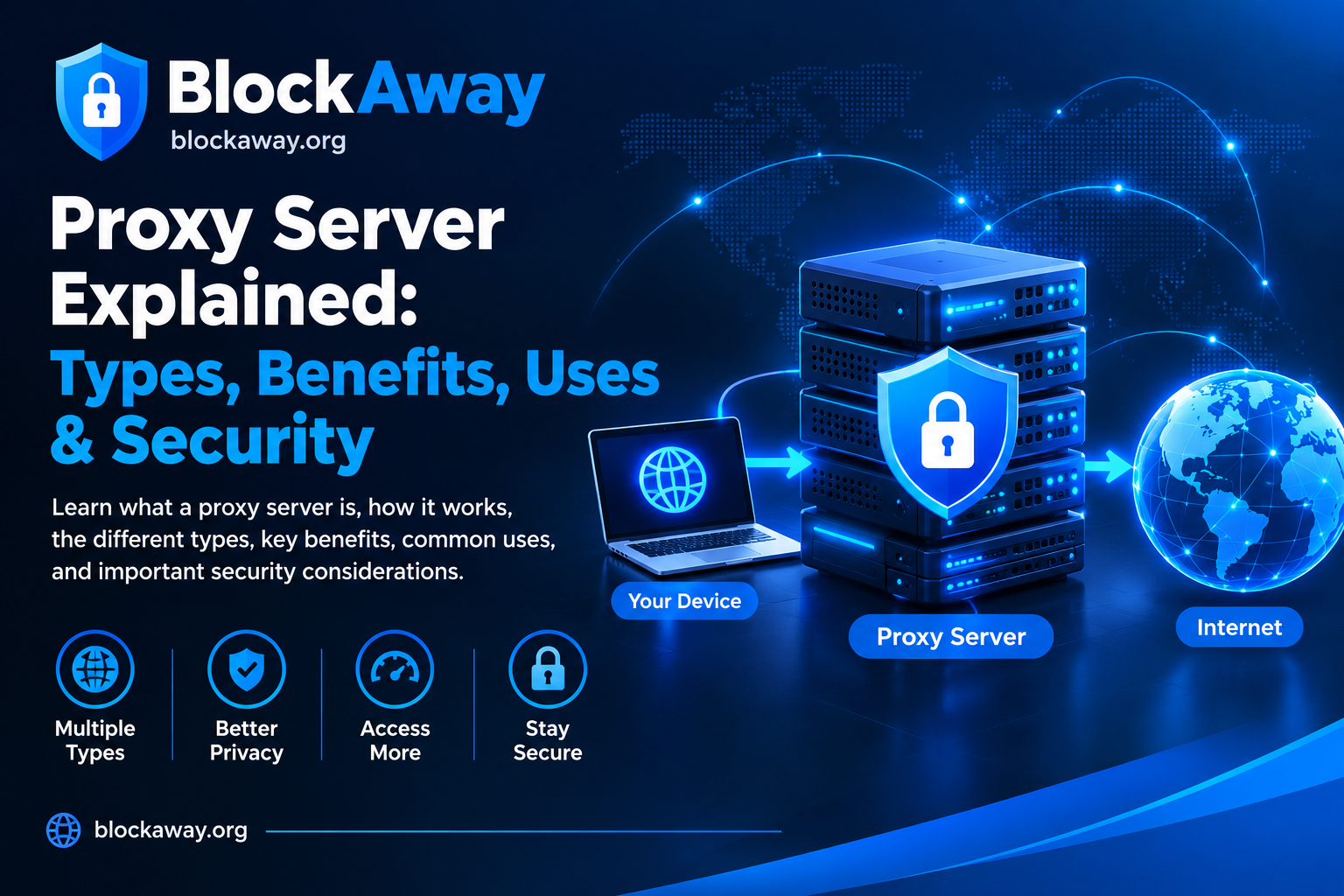
A web proxy can help you access websites through an intermediary server, but sometimes it may stop working as expected. You might see a connection error, a blank page, a loading screen that never finishes, or a message saying that the website cannot be reached.
If you are searching for “web proxy not working,” the problem could be caused by your internet connection, browser settings, the proxy server, website restrictions, or temporary technical issues.
In this guide, we will explain ten common reasons a web proxy may fail and provide practical troubleshooting steps to help you identify the problem.
1. Check Your Internet Connection
Before troubleshooting the proxy itself, make sure your internet connection is working properly.
A web proxy needs an active internet connection to communicate with its server and load the requested website. If your Wi-Fi or mobile data connection is unstable, the proxy may fail to open pages.
How to fix it:
Open another website directly in your browser.
Switch between Wi-Fi and mobile data, if available.
Restart your router if multiple devices have connection problems.
Turn airplane mode on and off to refresh your mobile connection.
If other websites also fail to load, resolve the internet connection issue first.
2. The Proxy Server May Be Temporarily Down
Free web proxies sometimes experience downtime because of maintenance, high traffic, or server problems.
When too many people use the same service, pages may load slowly or the connection may time out.
How to fix it:
Refresh the page once or twice.
Wait a few minutes and try again.
Check the proxy provider’s official status updates, if available.
If the service remains unavailable, consider a reputable alternative.
Avoid repeatedly submitting sensitive information to unfamiliar proxy websites while troubleshooting.
3. Clear Your Browser Cache and Cookies
Your browser stores temporary files and website data to make browsing faster. Occasionally, outdated cached files or corrupted cookies can interfere with a website or proxy interface.
How to fix it in Chrome:
Open Chrome.
Tap the three-dot menu.
Open Settings.
Select Privacy and security.
Choose Delete browsing data.
Select cached images and files.
Delete cookies only if necessary, since this may sign you out of websites.
Reopen the proxy website and test it again.
Menu names may vary slightly depending on your device and Chrome version.
4. Try Another Browser
Sometimes the issue is specific to your current browser. Extensions, outdated software, or incompatible browser settings can prevent a proxy website from functioning correctly.
Try opening the proxy service in another up-to-date browser.
If it works in the second browser, check the first browser for:
Outdated software
Problematic extensions
Strict privacy settings
Corrupted site data
JavaScript restrictions
Only change settings you understand, and keep your browser’s security protections enabled.
5. Disable Conflicting Extensions Temporarily
Ad blockers, privacy extensions, script blockers, and other browser add-ons may interfere with parts of a proxy website.
To investigate, temporarily disable extensions one at a time and reload the page.
If the website starts working, you may have identified the conflicting extension. Review its settings rather than disabling security protections permanently.
On mobile browsers, extension support varies by browser and device.
6. The Destination Website May Be Blocking Proxy Traffic
Some websites restrict traffic from known proxy servers. They may display a CAPTCHA, a security warning, an access-denied message, or a request to verify your identity.
This can happen even when the proxy itself is working correctly.
What you can do:
Open the destination website directly if permitted.
Follow the website’s verification instructions.
Check whether the website is experiencing an outage.
Contact the website administrator if you believe the restriction is a mistake.
A proxy cannot guarantee access to every website. Respect website policies and any applicable network restrictions.
7. Check for Incorrect URLs
A simple typing mistake can prevent a proxy from loading the destination page.
Make sure the web address is complete and spelled correctly. If the destination URL contains unnecessary spaces or malformed characters, enter it again carefully.
You should also confirm that the destination website still exists and uses a valid address.
If the proxy homepage opens but one particular destination does not, the issue may relate to that destination rather than the proxy service.
8. Update Your Browser
Older browser versions may have compatibility problems with modern websites, security certificates, or JavaScript features.
Open your browser’s official app store or update page and install any available stable updates.
After updating:
Close and reopen the browser.
Visit the proxy website again.
Test a different public webpage.
Check whether the error has disappeared.
Keep your operating system updated as well. Avoid downloading unofficial browser installers from unfamiliar websites.
9. Check Network or Firewall Restrictions
A school, workplace, public Wi-Fi network, or internet provider may restrict access to certain proxy services. Security software can also block connections that it considers suspicious.
If the proxy works on one network but not another, a network policy or filtering rule may be responsible.
Recommended steps:
Read the network’s acceptable-use policy.
Ask the network administrator whether the service is permitted.
Check your device’s security notifications.
Use an approved connection method when access is restricted.
Do not disable your firewall or antivirus simply to make an unknown proxy work. If the network administrator intentionally blocks a service, request authorized access instead.
10. The Proxy May Not Support the Website
Not every proxy supports every website feature. Modern websites may depend on JavaScript, video playback, login sessions, file uploads, or other technologies that a particular proxy does not handle properly.
You may notice that a page opens but some buttons, images, videos, or forms fail to work.
How to troubleshoot it:
Test a different, non-sensitive webpage.
Check the proxy provider’s documentation for compatibility limitations.
Try the destination directly when permitted.
Use the website’s official application or another authorized access method.
Never assume that a page is safe just because it opens through a proxy.
How to Identify the Actual Problem
Use the symptoms below to narrow down the cause.
Proxy website does not open: Check your internet connection, DNS settings, browser, and whether the service is available.
Proxy opens, but the destination does not: The destination may be restricting proxy traffic, or the proxy may not support that website.
Pages load very slowly: Network congestion, server load, or the proxy’s geographic location may affect performance.
Some images or buttons are missing: Browser compatibility, JavaScript restrictions, or proxy limitations may be responsible.
You see a security warning: Do not ignore it automatically. Verify the website address and certificate information before proceeding.
Is It Safe to Use a Free Web Proxy?
Free proxies can be convenient for basic browsing, but you should understand their limitations.
A proxy provider may be able to observe some information about your browsing activity, depending on how the service is designed and whether the connection is encrypted. HTTPS protects data in transit between your browser and the destination in ways that an ordinary unencrypted connection does not.
For safer browsing:
Prefer established services with clear privacy policies.
Avoid entering banking details, passwords, or other sensitive information into unfamiliar proxy services.
Never install certificates, browser extensions, or applications just because a proxy website requests them.
Do not download suspicious files through an unknown service.
Use official websites and applications whenever possible.
A web proxy is not automatically equivalent to a VPN, and neither tool guarantees complete anonymity.
Frequently Asked Questions
Why is my web proxy not loading?
Possible causes include an unstable internet connection, temporary server downtime, browser issues, network restrictions, or a destination website that blocks proxy traffic. Check your connection first, then test the proxy in another browser.
Why does a proxy work on Wi-Fi but not on mobile data?
Different networks can use different filtering policies, DNS configurations, and connection routes. Check whether the service is permitted on both networks and contact your network provider if the issue persists.
Why does a proxy open websites slowly?
Free proxy servers may have limited resources or heavy traffic. Your own internet connection and the destination website can also affect loading speed.
Can I fix a proxy error without installing software?
Often, yes. Checking your internet connection, clearing cached data, updating your browser, and testing the official proxy website may resolve common problems without additional software.
Is a web proxy safe for passwords?
You should not enter sensitive credentials into an unfamiliar proxy service. A proxy operator may have access to some browsing information, and a malicious service could create additional risks.
What should I do if none of the fixes work?
The service may be down, incompatible with your destination website, or restricted by your network. Check official service information and contact the relevant provider or administrator.
Final Thoughts
When a web proxy stops working, the cause is not always the proxy server itself. Internet connectivity, cached browser data, extensions, website restrictions, and compatibility issues can all contribute to the problem.
Start with the simplest checks and work through the troubleshooting steps one by one. Avoid disabling essential security protections or sharing sensitive information with unknown services.
With a little troubleshooting, you can often identify whether the issue comes from your browser, network, proxy provider, or the destination website.